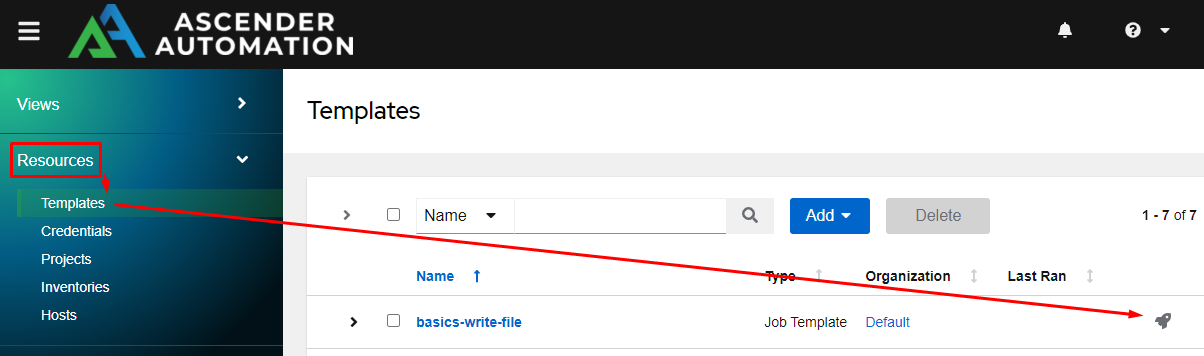
From the Resources menu on the left, choose Templates.
This brings up the Templates menu, and from here to the right of each item, you can click the rocketship to launch a job.
Launch the basics-write-file job template.
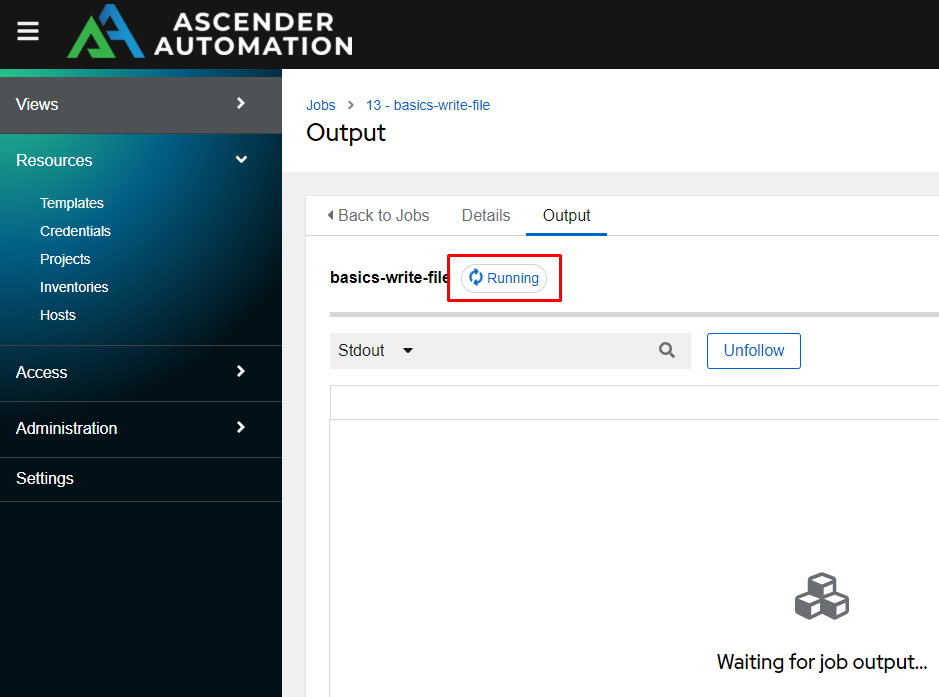
Once a template is launched you are brought directly to the running job in the Views - Jobs menu.
As the job completes output should start appearing, and once complete should show the play recap at the end.
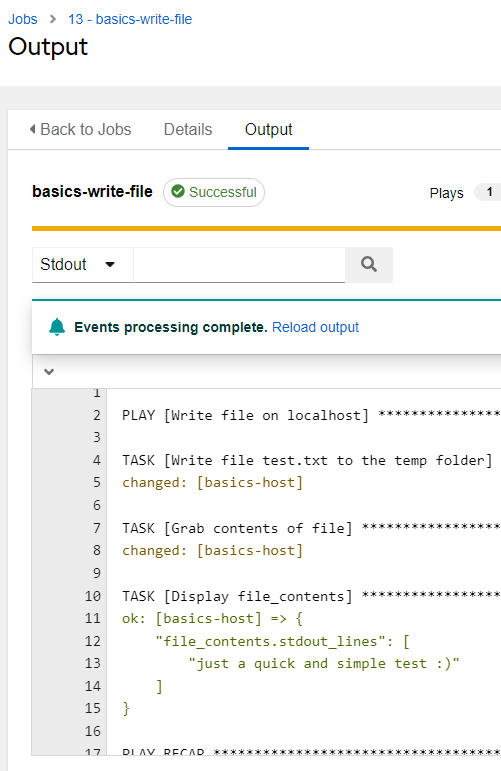
Any object in red, green, or orange should be clickable to gain more information.
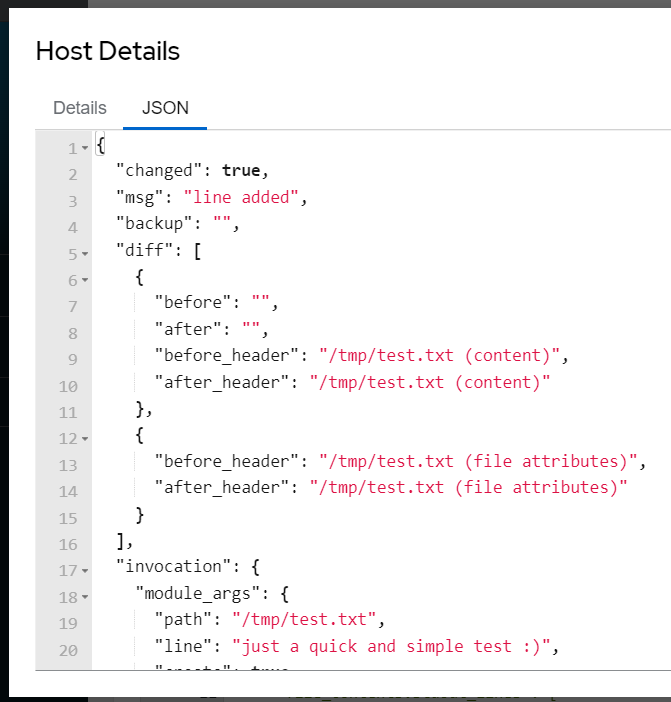
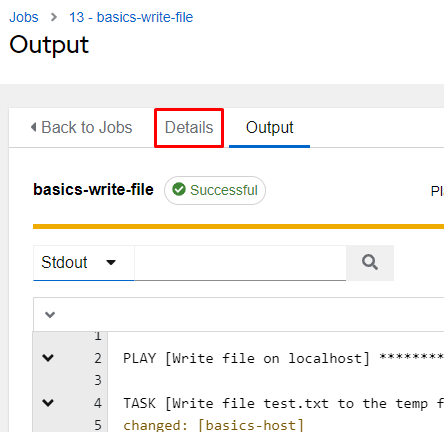
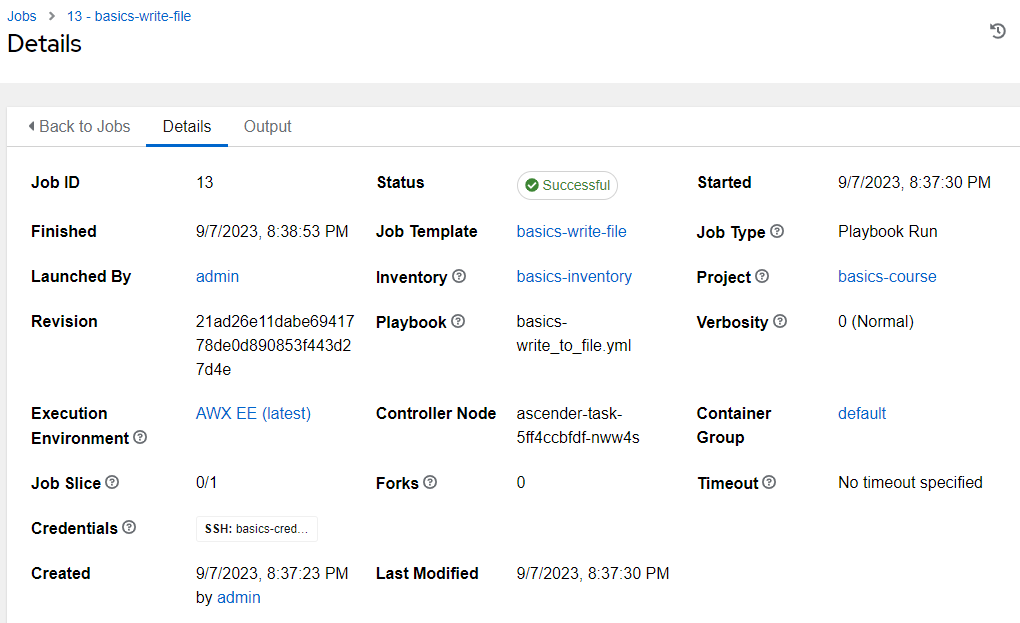
On the job output screen, you can click the Details tab to gain additional insights on the job run.
The concept of idempotency is one that says “I can run the same piece of automation multiple times and if a change is required, Ansible will make a change, and if not, it will do nothing.”
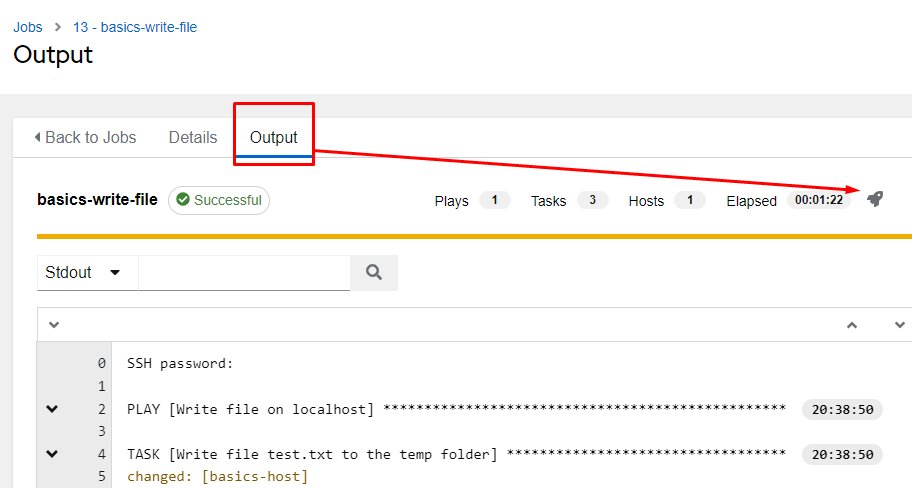
To test this, let’s rerun our same job template by clicking on the rocketship again from the output tab on our last job run. This will relaunch the job again.
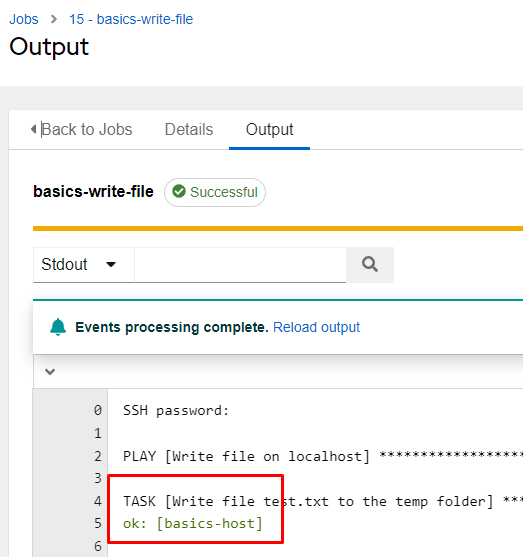
Notice on the returned results instead of saying “changed” for the first task it just says “ok”. That’s because the file is already in the desired state, so no change was needed. This means that an idempotent playbook can be run multiple times without negative impact to the end hosts.
This doesn’t mean all playbooks are idempotent, rather most modules do support it, but it’s not guaranteed.
Returned output is usually one of 4 things:
| ok | Everything executed fine, but no changes were made. |
| changed | Everything ran fine, but it appears that a change was made. |
| failed | The task failed for a host. This will cause the playbook to show a failed status. |
| skipping | This task had a conditional set, and the host didn’t match, so it skipped for this specific host. |