When creating our original playbook we used variables just a bit, so let’s dive in and learn a little more about them.
There are a few rules to variables:
Generally variables are all lower case and separated by underscores; IE my_variable_name.
A vars section can be added to a whole play or to an individual task. These sections are used for scoping variables, as in a vars section at the play level is available to all tasks, and a vars section on a task is only available to that task.
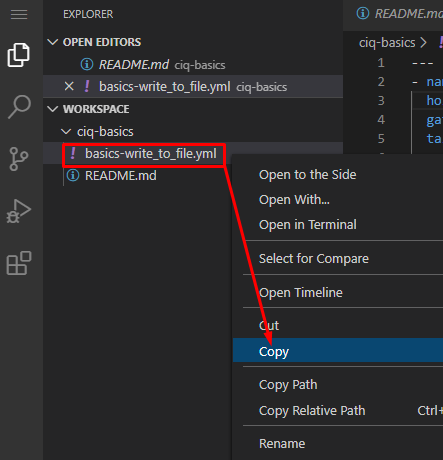
Let’s practice by duplicating, then modifying our existing playbook basics-write_to_file.yml. I’ll make a copy and name it basics-write_to_file_vars.yml. I’m going to do this in VSCode by right clicking the basics-write_to_file.yml file and choosing copy, then right click ciq-basics folder and choose paste:
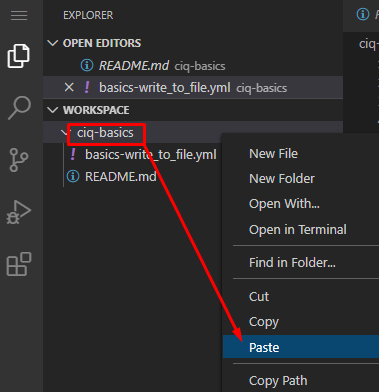
This creates a copy file that I will right click and rename basics-write_to_file_vars.yml:
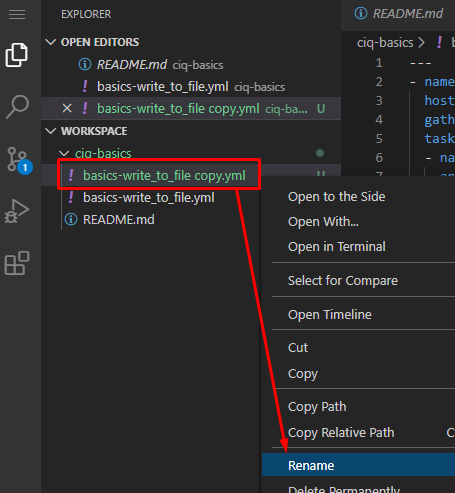
We will add a vars section at the top and one at the task level, and I’ll modify the line to use variables as follows. Notice how simple it is to create a variable.:
---
- name: Write file on localhost
  hosts: basics-host
  gather_facts: false
  vars:
    my_name: Greg
  tasks:

    - name: Write file test.txt to the temp folder
      ansible.builtin.lineinfile:
        path: /tmp/test.txt
        line: "{{ my_name }} is so much cooler than {{ your_name }} ;)"
        create: yes
      vars:
        your_name: Jimmy

    - name: Grab contents of file
      ansible.builtin.shell: cat /tmp/test.txt
      register: file_contents

    - name: Display file_contents
      ansible.builtin.debug:
        var: file_contents.stdout_lines
Notice the “line” key / value pair. Here I’m doing variable replacement. Variables will be used most often in the format shown here. It will be double curly braces with the variable name inside and surrounded by double quotes: “{{ variable_name }}”.
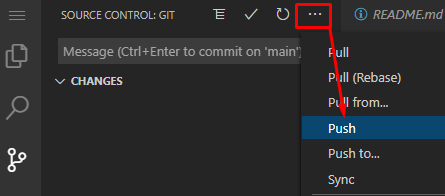
Now that the playbook has been created, jump to the Source Control menu, add a comment, commit, and push:
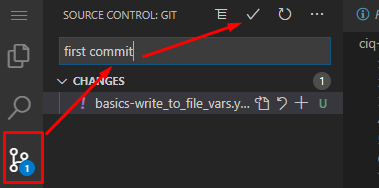
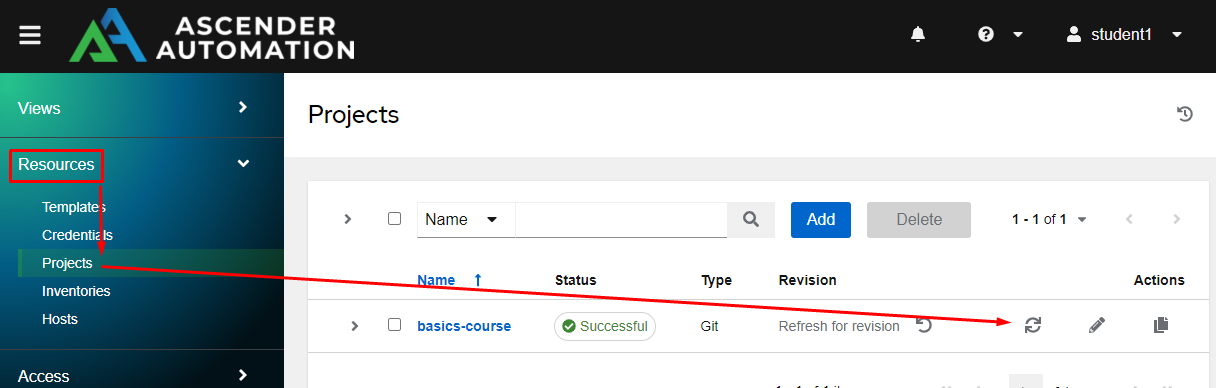
Now that I’ve saved the new file in my git repository I’ll resync the project in Ascender so that it will show up as a usable playbook. From the Resources menu, click on Projects, then the sync symbol next to my basics-course project. I have to do this right after the file is created because nothing has forced the project to pull in this new playbook yet:
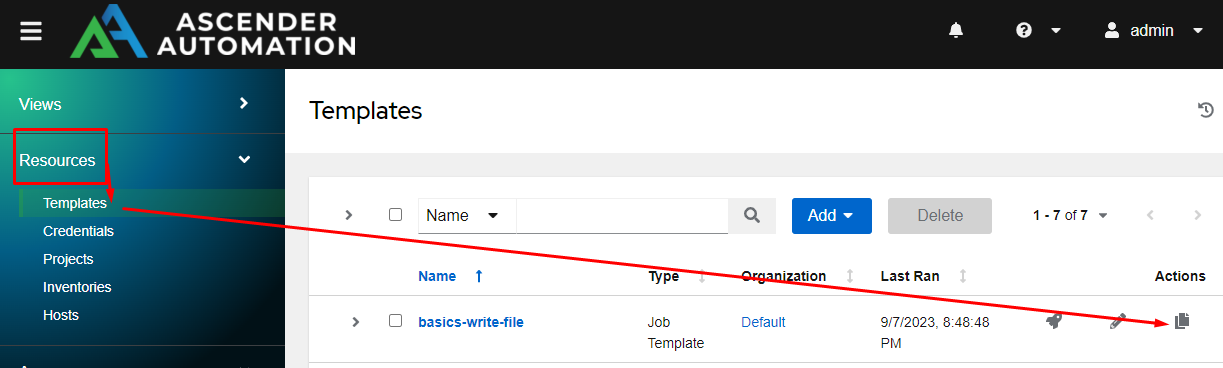
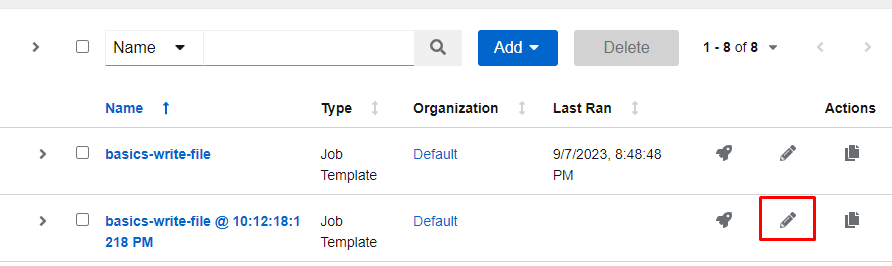
I’ll now cheat by duplicating my previous job template, and changing a few options.
From the Resources menu, click Templates, then click the copy button:
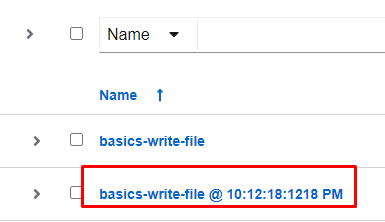
Let’s edit the new job template and modify some of the values.
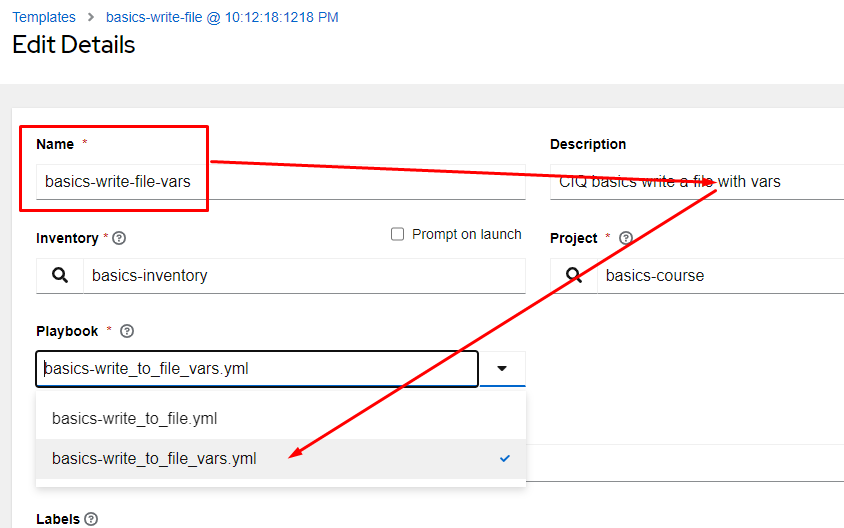
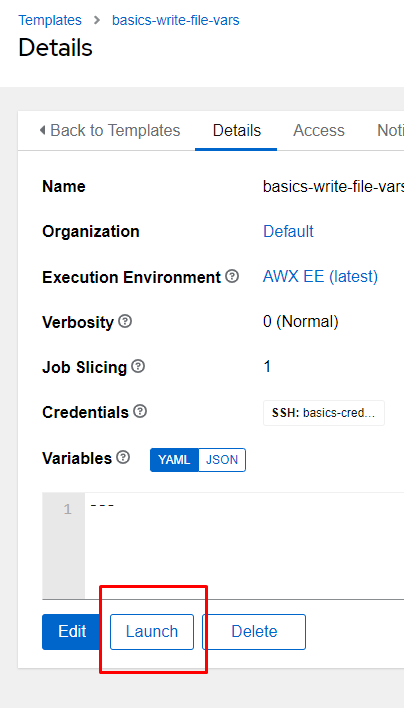
Now launch the new job template you just created:
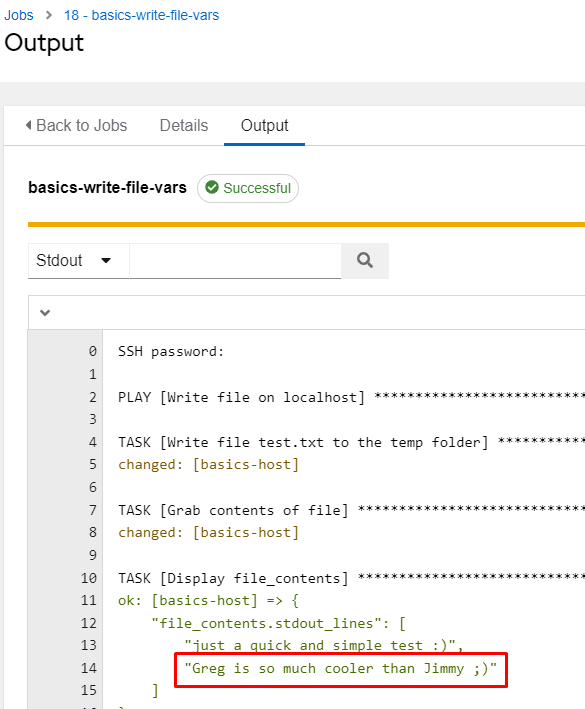
In the output you can see how our variables were replaced!
Let’s take a look at our playbook again:
---
- name: Write file on localhost
  hosts: basics-host
  gather_facts: false
  vars:
    my_name: Greg
  tasks:

    - name: Write file test.txt to the temp folder
      ansible.builtin.lineinfile:
        path: /tmp/test.txt
        line: "{{ my_name }} is so much cooler than {{ your_name }} ;)"
        create: yes
      vars:
        your_name: Jimmy

    - name: Grab contents of file
      ansible.builtin.shell: cat /tmp/test.txt
      register: file_contents

    - name: Display file_contents
      ansible.builtin.debug:
        var: file_contents.stdout_lines
Notice that in the second task, it is running a shell command and then registering the output to a variable. This is a simple way to save the returned information from a task to a variable; it creates the variable and saves the info all in one go.
There are literally 22 different levels of variable precedence, which means there are a lot of options for setting and overriding variables. Fortunately, there are only really a few places that are commonly used. This list is in order of least to highest precedence:
The most common places are inventory, variables in a role, variables in the playbook, and passed as extra vars at run time. Keep in mind that extra vars have the absolute highest level of precedence.
When you get ready to see how far the rabbit hole goes (not right now of course), you can find a more in depth discussion on Greg Sowell’s personal blog about looping with lists and dictionaries at: