We are going to be quickly revisiting the variables lesson to examine surveys. Surveys are a simple way to prompt a user for all kinds of various information to be used in a job template. The information is simply injected into the playbook as extra variables(with extra_vars having the highest level of precedence they will overwrite any existing variables with the same name).
We are simply going to reuse (you don’t need to create anything in VSCode) the basics-write_to_file_vars.yml playbook from section 1.5. Just as a reminder, it’s listed below. The blue sections show that we are setting the my_name and your_name variables in the playbook, and we won’t be changing this in the playbook itself. Rather we will be using a survey to overwrite these variables(since a survey passes values in as extra_vars, they will have the highest precedence). Keep in mind that the green line is where we actually utilize those variables.
---
- name: Write file on localhost
  hosts: basics-host
  gather_facts: false
  vars:
    my_name: Greg
  tasks:
    - name: Write file test.txt to the temp folder
      ansible.builtin.lineinfile:
        path: /tmp/test.txt
        line: "{{ my_name }} is so much cooler than {{ your_name }} ;)"
        create: yes
      vars:
        your_name: Jimmy

    - name: Grab contents of file
      ansible.builtin.shell: cat /tmp/test.txt
      register: file_contents

    - name: Display file_contents
      ansible.builtin.debug:
var: file_contents.stdout_linesI’ll start by cloning the basics-write-file-vars job template. You’ve done this several times now, so I won’t spell it out explicitly.
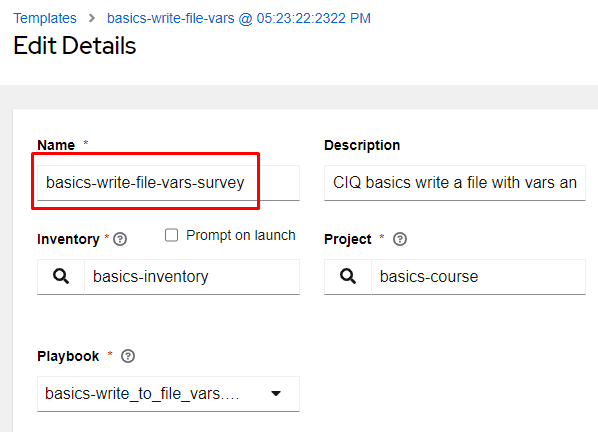
Once the job template has been cloned, I’ll edit the name to basics-write-file-vars-survey:
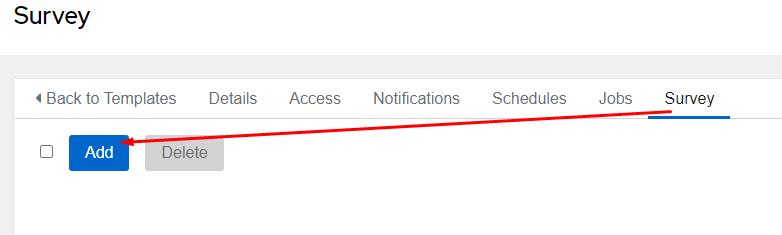
Time to start creating my survey, so I’ll click on the Survey tab and click Add, then I’m presented with the Add Question page:
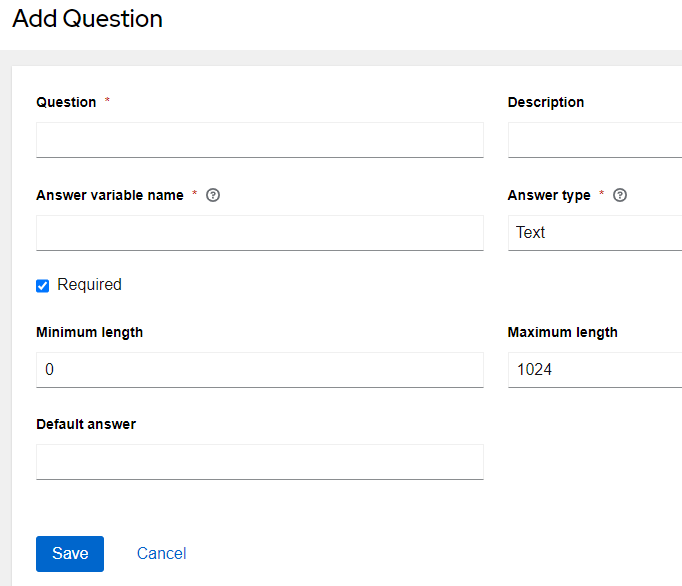
I’ll describe the sections seen above:
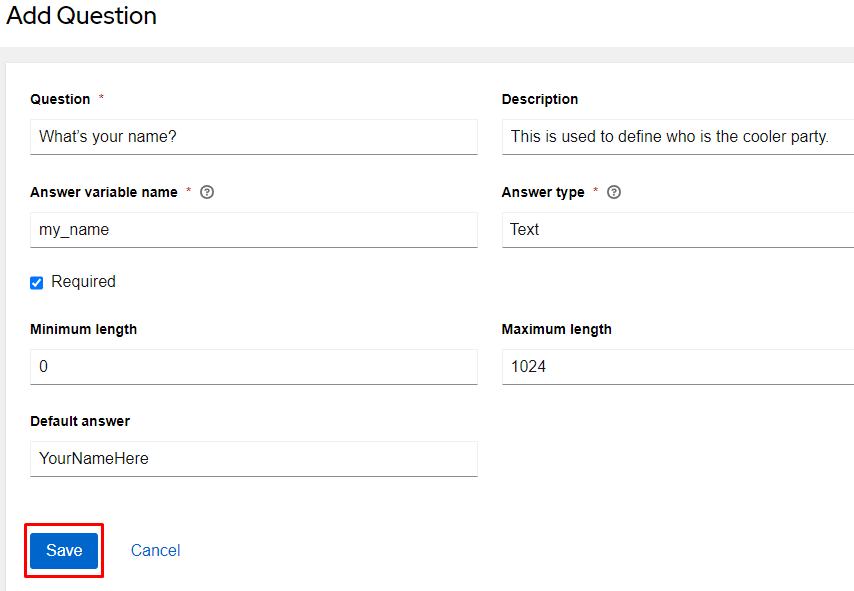
At this point I’ll add my first entry. I’m going to ask the user what their name is. Keeping this in mind I’ll use the info from the below to fill in the blanks and click Save. Remember, only the answer variable name must be exactly as below:
| Question | What’s your name? |
| Description | This is used to define who is the cooler party. |
| Answer variable name | my_name |
| Answer type | Text |
| Required (checkbox) | Checked |
| Default answer | YourNameHere |
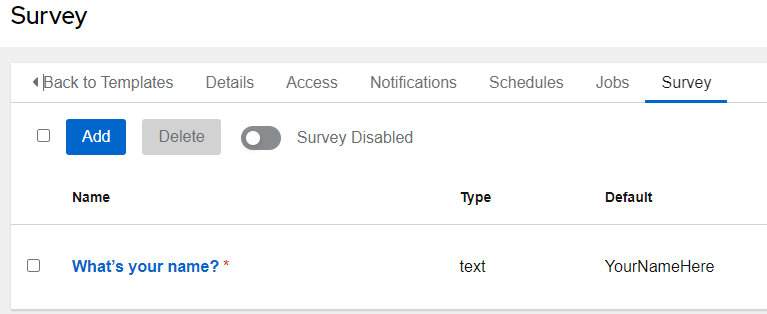
Now, using the info below, create a new survey question for the other required variable:
| Question | What’s your friend’s name? |
| Description | This is used to define who is the less cool person. |
| Answer variable name | your_name |
| Answer type | Text |
| Required (checkbox) | Checked |
| Default answer | Justin |
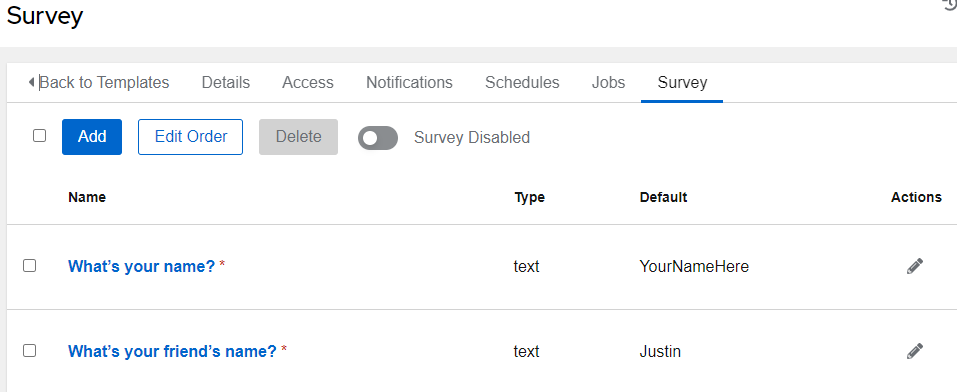
At this point I have both required variables:
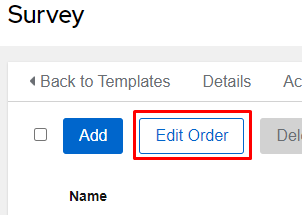
If I wanted to edit order I can click the Edit Order button and move things around:
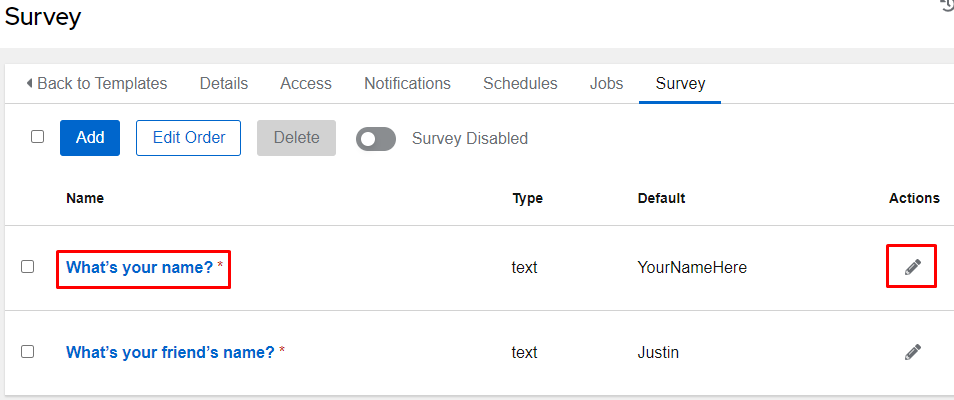
I could also change anything about my questions by clicking the entry’s Name or click the pencil in the Actions section:
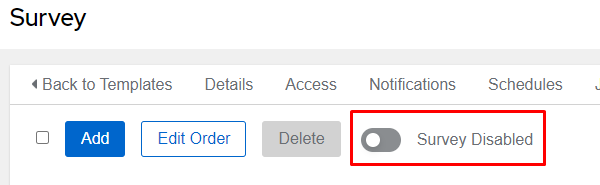
While my survey is complete, it’s not currently being utilized. I have to click the Survey Disabled radio button to enable it:
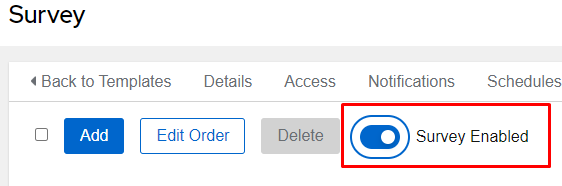
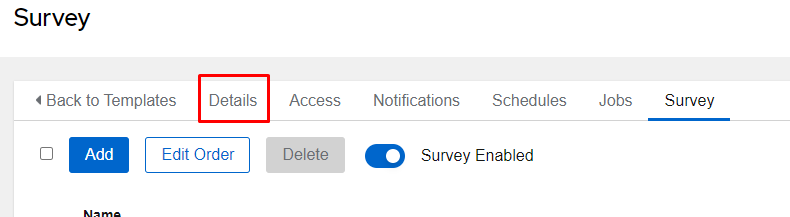
Now click Details, and Launch at the bottom of the template:
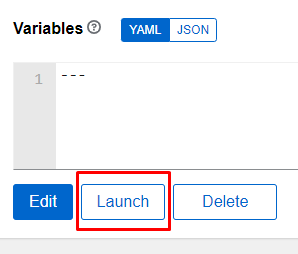
You should be presented with the following Launch form:
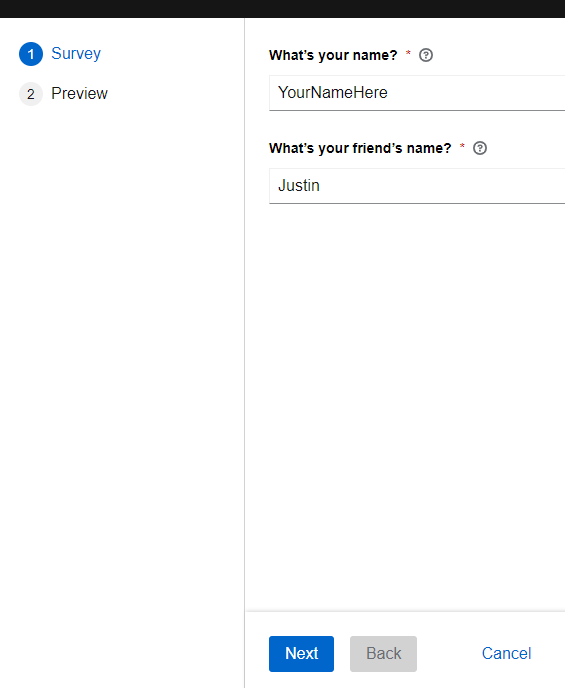
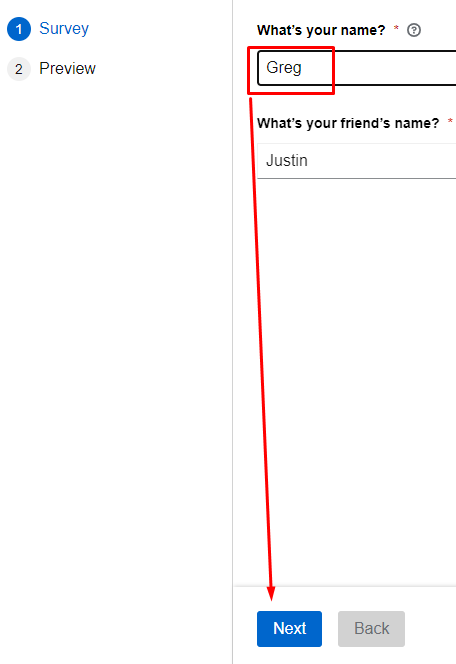
I’ll set my name, my friend’s name, and click Next. This will move me to a Preview screen:
Now in the Preview section, we can see the variables I’ve included in my survey:
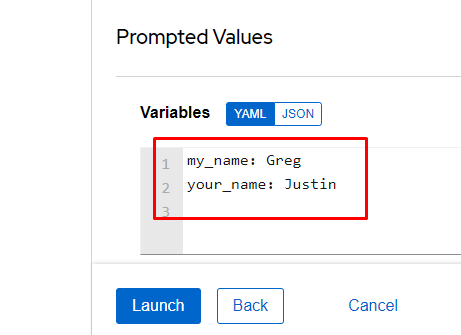
Clicking Launch will run the job template with the supplied extra_vars:
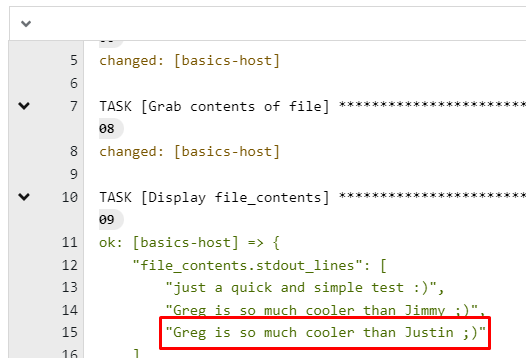
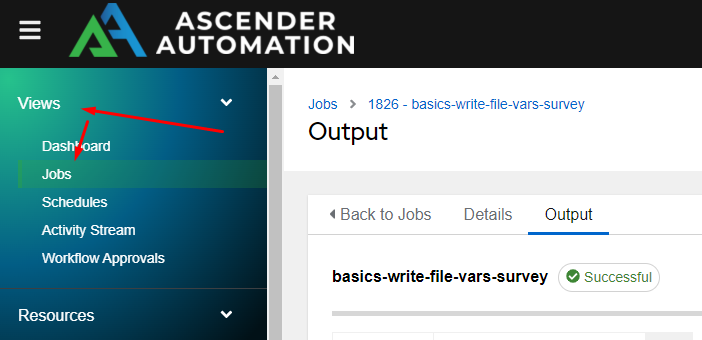
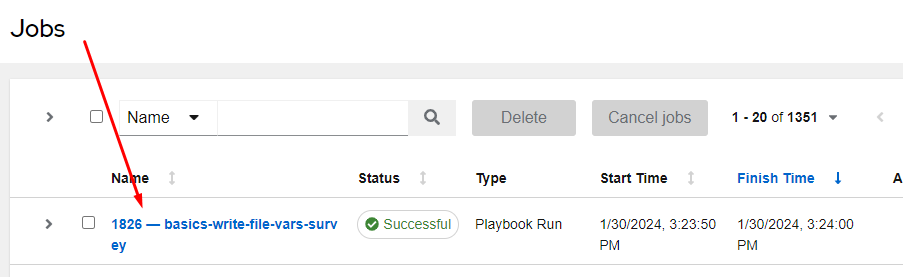
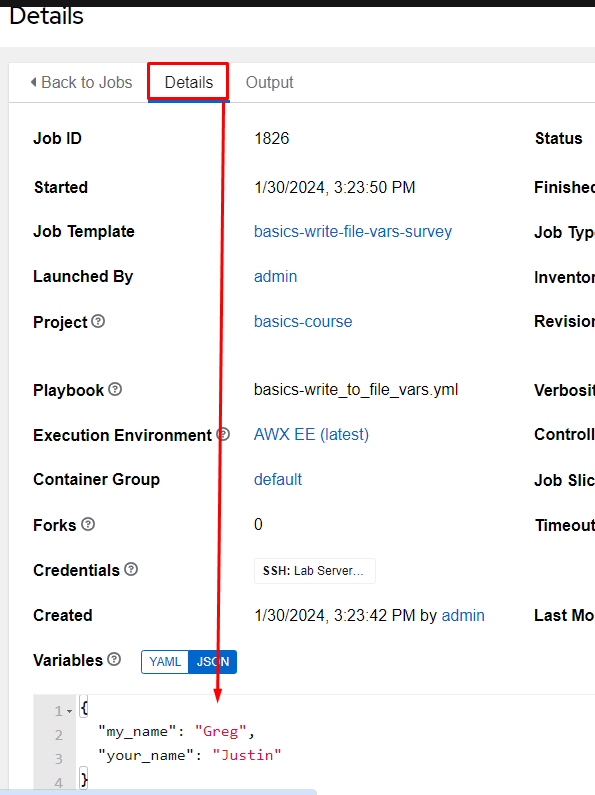
At any point you can go to Jobs under Views, select the job, click on Details, and view the supplied variables: